llama-server ngl: How to Set and Verify GPU Offload
Learn how to set -ngl in llama-server, verify GPU layer offload in startup logs, avoid silent CPU fallback, and check device readiness.
In llama-server, the -ngl flag defines the maximum number of model layers assigned to GPU memory instead of an arbitrary VRAM percentage. You can pass a specific integer, set auto, or request all. Because the server starts even when offloading fails completely, you must inspect startup console logs to confirm where layers reside.
When I set up local LLM inference on consumer GPUs, my primary goal is avoiding silent execution drops. Hardware must work. A wrong flag leaves weights in main system memory. That slows token generation down to a crawl. You need clear visibility into hardware placement before sending user traffic. Here is how -ngl operates in current builds and how you can verify your device placement.
What does -ngl do in llama-server?
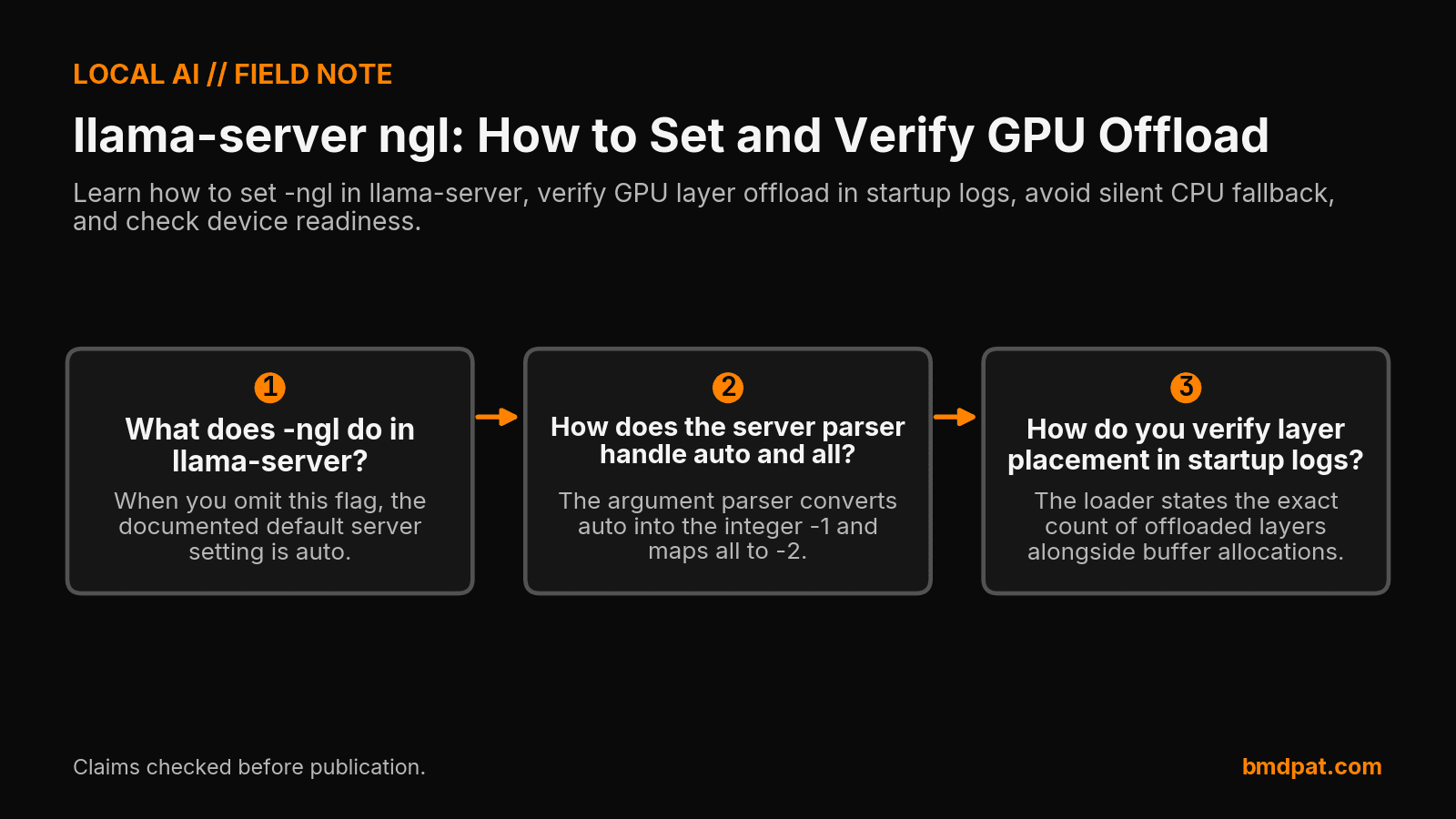
The -ngl flag sets the maximum number of model layers assigned to GPU memory during server startup. It is an alias for --gpu-layers and --n-gpu-layers, and reads from the LLAMA_ARG_N_GPU_LAYERS environment variable. When you omit this flag, the documented default server setting is auto.
The primary llama.cpp server documentation explains that these flags control layer counts directly. They do not calculate dynamic memory percentages. If you want to estimate layer capacity before launching, use a VRAM calculator to gauge hardware space. An explicit integer cap lets you reserve specific memory headroom for concurrent desktop tasks. When testing baseline execution, --device none disables all device offload. The server also enables --fit on by default. This fitting setting adjusts unset arguments to match device memory, but it will not fix conflicting explicit configurations.
How does the server parser handle auto and all?
The argument parser converts auto into the integer -1 and maps all to -2. If your binary lacks compiled GPU backend support, the parser emits a warning and ignores the setting. The server continues running on the CPU rather than halting execution.
Code inspection of llama.cpp arg.cpp reveals this internal translation. Many community posts claim that -1 requests all layers. That advice is outdated. If you read our earlier llama.cpp n-gpu-layers guide, qualify those older numeric conventions against newer server releases.
Independent documentation from Hugging Face's GGUF guide emphasizes that GPU acceleration requires explicit build configuration like -DGGML_CUDA=ON. Downloading a model file and enabling a hardware acceleration backend remain distinct steps. If your binary was compiled without CUDA, passing -ngl all triggers a parser warning. The process simply stays on the CPU. It will not halt.
How do you verify layer placement in startup logs?
You verify layer placement by reading the offload summary and model buffer sizes printed to standard output during startup. The loader states the exact count of offloaded layers alongside buffer allocations. If that count is zero, all computation stays on the CPU.
Source code in llama.cpp llama-model.cpp shows that the total offloadable layer count includes an output layer. Do not compare the log denominator against only the transformer block count. That comparison misleads because the log denominator is often one higher than the transformer blocks alone. Always inspect both the offload summary lines and the model buffer allocations.
You can inspect hardware visibility and test launching models with these commands:
llama-server --list-devices
llama-server -hf bartowski/Llama-3.2-3B-Instruct-GGUF:Q8_0
The --list-devices option prints all detected accelerators. The Hugging Face server command downloads and serves the target GGUF file as documented in their guide. Check stdout immediately upon launch.
Why does /health fail to verify GPU offload?
The /health endpoint confirms that the web server is listening and ready to receive requests, not that weights sit on your GPU. It returns HTTP 503 while loading model weights and returns HTTP 200 once ready. It returns healthy even during pure CPU execution.
The primary llama.cpp server documentation defines HTTP 200 as an indicator of server readiness reporting status: ok. It tracks socket state. It does not measure GPU memory or backend placement. When a binary drops back to CPU, /health still returns HTTP 200. Never rely on HTTP pings to verify hardware offload. Only startup logs and device queries reveal true layer location.
What should you do with this?
You should audit your binary build, inspect visible accelerators, and confirm the layer counts printed during startup before sending workloads to the server. Following these verification checks prevents silent fallback to system memory. You ensure the hardware handles the layers you assigned.
- Run
llama-server --list-devicesto confirm that the server binary detects your target GPU. - Launch
llama-serverwith your chosen-nglinteger,auto, orall, and capture standard output during boot. - Inspect the loader log to ensure the offloaded layer count matches your expectation and is non-zero.
Accompanying prompt
What the prompt does: Audits a llama-server startup command and log output to verify layer placement and detect silent CPU fallback.
Copy/paste this prompt:
Copy-ready prompt
Paste the exact block into your coding agent.
No article chrome, no footnotes, no formatting drift.
This prompt and every other one we publish live in the free prompt library.
Copy the block above.
Weekly measured local runs: https://bmdpat.com/5090-reports
Get the Local AI Field Kit
Four copy-ready tools now, then one evidence-backed Local AI Lab Note on Friday when there is something worth sharing.
Try the free agent run check firstGet the requested artifact now, then at most one evidence-backed Local AI Lab Note on Friday when there is something worth sharing. One-click unsubscribe. No sponsored placements. Privacy.
Written by
Patrick Hughes
I build BMD and publish measured AI runs, failure reports, and reusable checks. Nashville, Tennessee.
More writing
- 5 min
I Rebuilt BMD Desktop Around Queues and Drain
On 2026-10-14, I rebuilt BMD Desktop around queues, cut 63 open requests down to 10, and faced an overnight log full of red security audits.
- 5 min
What Does ngl 99 Mean in llama.cpp?
In llama.cpp, ngl 99 sets a numeric cap of 99 layers in GPU memory rather than 99 percent VRAM. Here is how layer offloading works and what to run.
- 5 min
q4km vs q4ks: which 4-bit file fits?
q4km is Q4_K_M and q4ks is Q4_K_S. For Llama 3.1 8B, the quantize README lists 4.36 GiB for Q4_K_S and 4.58 GiB for Q4_K_M.
- 5 min
KV Cache Q4 vs Q8 in llama.cpp Explained
Compare q4_0 and q8_0 KV cache options in llama.cpp server. Learn the exact CLI flags, allowed types, defaults, and how to verify output quality.
- 5 min
RFC 9110 402 Payment Required: Reserved for Future Use
RFC 9110 reserves status 402 for future use with zero wire protocol details. Check the IANA registry entry and handle custom payment headers in your client.