llama.cpp max context length gpu memory: What Fits
Find out how context length drives GPU memory in llama.cpp, how the KV cache scales, and which flags keep your local inference runs within VRAM limits.
In llama.cpp, your maximum context length depends on the VRAM left over after loading model weights and compute buffers, with context memory scaling linearly through the KV cache.
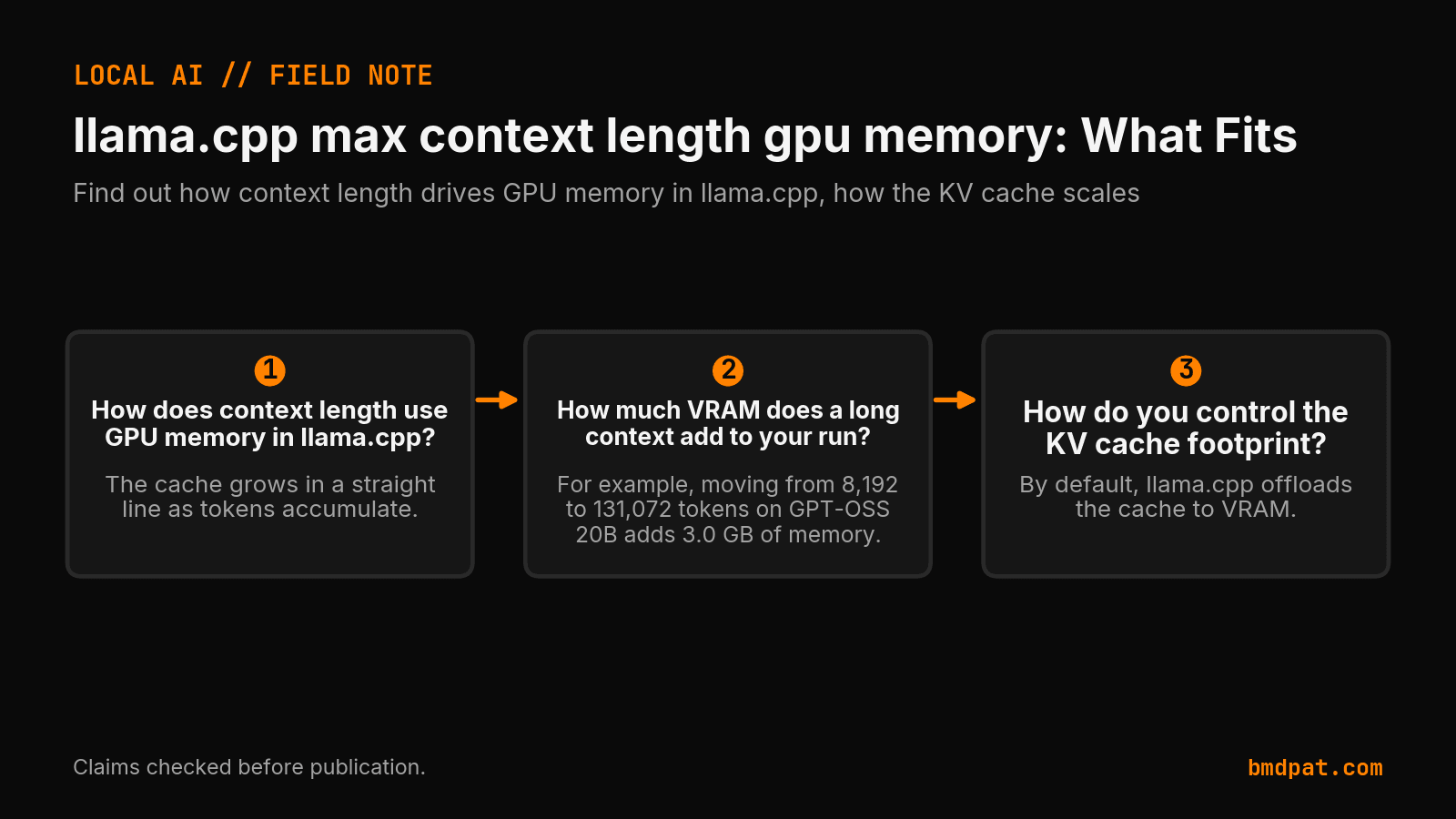
How does context length use GPU memory in llama.cpp?
Context length consumes GPU memory through the Key-Value cache after weights and compute buffers claim their share. The cache grows in a straight line as tokens accumulate. If model weights and compute buffers fill your VRAM, context allocation fails and the run terminates.
When you launch llama-server, memory divides into weights, compute buffers, and the Key-Value cache. If you run local LLM inference on consumer GPUs, your card sets a hard limit for all three allocations combined. The official llama.cpp server documentation notes -c sets context size, defaulting to 0 to load trained model length.
How much VRAM does a long context add to your run?
A longer context adds memory at a steady rate per token, while model weights stay fixed and claim most of your VRAM. For example, moving from 8,192 to 131,072 tokens on GPT-OSS 20B adds 3.0 GB of memory. Model weights and compute buffers remain unchanged during that context increase.
In the llama.cpp discussion for GPT-OSS models, maintainers broke down memory usage across sequence lengths:
| Component | GPT-OSS 20B (8,192 tokens) | GPT-OSS 20B (131,072 tokens) | GPT-OSS 120B (8,192 tokens) | GPT-OSS 120B (131,072 tokens) |
|---|---|---|---|---|
| Model weights | 12.0 GB | 12.0 GB | 61.0 GB | 61.0 GB |
| Compute buffers | 2.7 GB | 2.7 GB | 2.7 GB | 2.7 GB |
| KV cache per 8,192 tokens | 0.2 GB | 0.2 GB | 0.3 GB | 0.3 GB |
| Total VRAM | 14.9 GB | 17.9 GB | 64.0 GB | 68.5 GB |
On GPT-OSS 20B, the KV cache takes 0.2 GB per 8,192 tokens. Multiplying that rate to 131,072 tokens adds 3.0 GB of cache, raising total memory from 14.9 GB to 17.9 GB. Model weights claim 12.0 GB. On GPT-OSS 120B, the cache scales total VRAM from 64.0 GB to 68.5 GB. Check your limits with our VRAM calculator.
Independent documentation from Hugging Face on KV cache architecture confirms the cache can become a memory bottleneck. For models with sliding window attention, the cache stops growing when layers reach their maximum window size.
How do you control the KV cache footprint?
You control the KV cache footprint by bounding context size with -c, reducing precision with -ctk and -ctv, or moving the cache off the GPU with -nkvo. By default, llama.cpp offloads the cache to VRAM. Passing -nkvo keeps layers on GPU while storing the cache in system memory.
The llama.cpp server reference documents key flags. Set -c explicitly, such as -c 8192. By default, -kvo is active. Passing -nkvo leaves weights on the card and moves the cache to system RAM. As Hugging Face notes, moving cache tensors off the GPU trades inference throughput to preserve headroom.
Our llama.cpp n-gpu-layers guide explains tuning layer counts with -ngl. Setting -ngl all loads all layers into VRAM, while lower numbers free room for context. In addition, -fa on enables flash attention.
When should you change the KV cache data type?
You should change the KV cache data type to q8_0 or q4_0 when you need a longer window and run short on VRAM. The default f16 format maintains latency. Switching to quantized cache formats lowers memory consumption per token, allowing your desired context length to fit within hardware limits.
In llama.cpp, -ctk and -ctv set KV cache quantization, defaulting to f16. Supported types include f32, f16, bf16, q8_0, q4_0, q4_1, iq4_nl, q5_0, and q5_1. Hugging Face notes that quantizing cache values can harm latency when sequences are short and GPU memory is sufficient.
When you need a 128k context and miss headroom by a few gigabytes, lower -ctk and -ctv to q8_0. If you need more room, drop them to q4_0 to cut per-token memory while keeping all model layers on the GPU.
What should you do with this?
You should set an explicit context size, pick a KV cache type that fits your memory headroom, and test your launch command directly. I verify my settings with a single test run before starting longer workflows. Following three disciplined steps prevents memory allocation failures on your GPU.
- Set an explicit context window with
-c. Avoid leaving it at0unless your card holds the full native window. For an 8,192 token limit, specify-c 8192. - Quantize the KV cache when you need headroom. Pass
-ctk q8_0 -ctv q8_0to decrease cache consumption without offloading layers. - Test your startup command with flash attention enabled:
llama-server -m model.gguf -c 8192 -ngl all -ctk q8_0 -ctv q8_0 -fa on
If memory allocation still fails, add -nkvo to move the cache to system RAM.
Accompanying prompt
What the prompt does: Generates a llama-server startup command tailored to your available VRAM and target context length.
Copy/paste this prompt:
Copy-ready prompt
Paste the exact block into your coding agent.
No article chrome, no footnotes, no formatting drift.
This prompt and every other one we publish live in the free prompt library.
Copy the block above.
Weekly measured local runs: https://bmdpat.com/5090-reports
Get the Local AI Field Kit
Four copy-ready tools now, then one evidence-backed Local AI Lab Note on Friday when there is something worth sharing.
Try the free agent run check firstGet the requested artifact now, then at most one evidence-backed Local AI Lab Note on Friday when there is something worth sharing. One-click unsubscribe. No sponsored placements. Privacy.
Patrick Hughes
I build BMD and publish measured AI runs, failure reports, and reusable checks. Nashville, Tennessee.
More writing
- 5 min
A Sandbox Split Stopped My Fleet While 142 Tests Cleared
On 2026-10-09 my nightly sweep aborted on sandbox branch drift. A green scan checked zero repos. Here is how 142 CI admission tests still cleared.
- 5 min
How to Route Local LLM Workloads with Open Weights
Open weights match coding parity while cloud models lead on reasoning. Route your 5090 workloads using verified 2026 inference pricing and benchmark data.
- 5 min
Bonsai 27B vs Gemma 4 E4B: Which Should You Run?
Compare Ternary Bonsai 27B and Gemma 4 E4B for local AI. See VRAM footprints, multimodal support, benchmark scores, and run commands for your setup.
- 5 min
q4_k_m vs q8_0: which GGUF quant should you use?
Compare Q4_K_M and Q8_0 for Llama 3.1 8B. Learn how quantization affects file size, VRAM usage, perplexity, and generation speed on local hardware.
- 5 min
Local or API? Test the task before routing it
Compare a local model with an API on the same task. Record settings, failed attempts, review time and cost before you decide where the workload belongs.