What Does Q4_K_M Mean? GGUF Quantization Decoded
Learn the exact meaning of Q4_K_M in llama.cpp, how its mixed tensor precisions work, and how to verify if it fits your consumer GPU VRAM budget.
The q4_k_m meaning is a predominantly four-bit K-quant model preset whose M suffix means Medium.
The label tells you that the model file targets a balanced medium quantization level, but it does not mean that every single weight inside the file sits at exactly four bits. Instead, it mixes precisions across layers to protect critical model components while shrinking the bulk of the weights to fit your memory budget.
What does the Q4_K_M name actually mean?
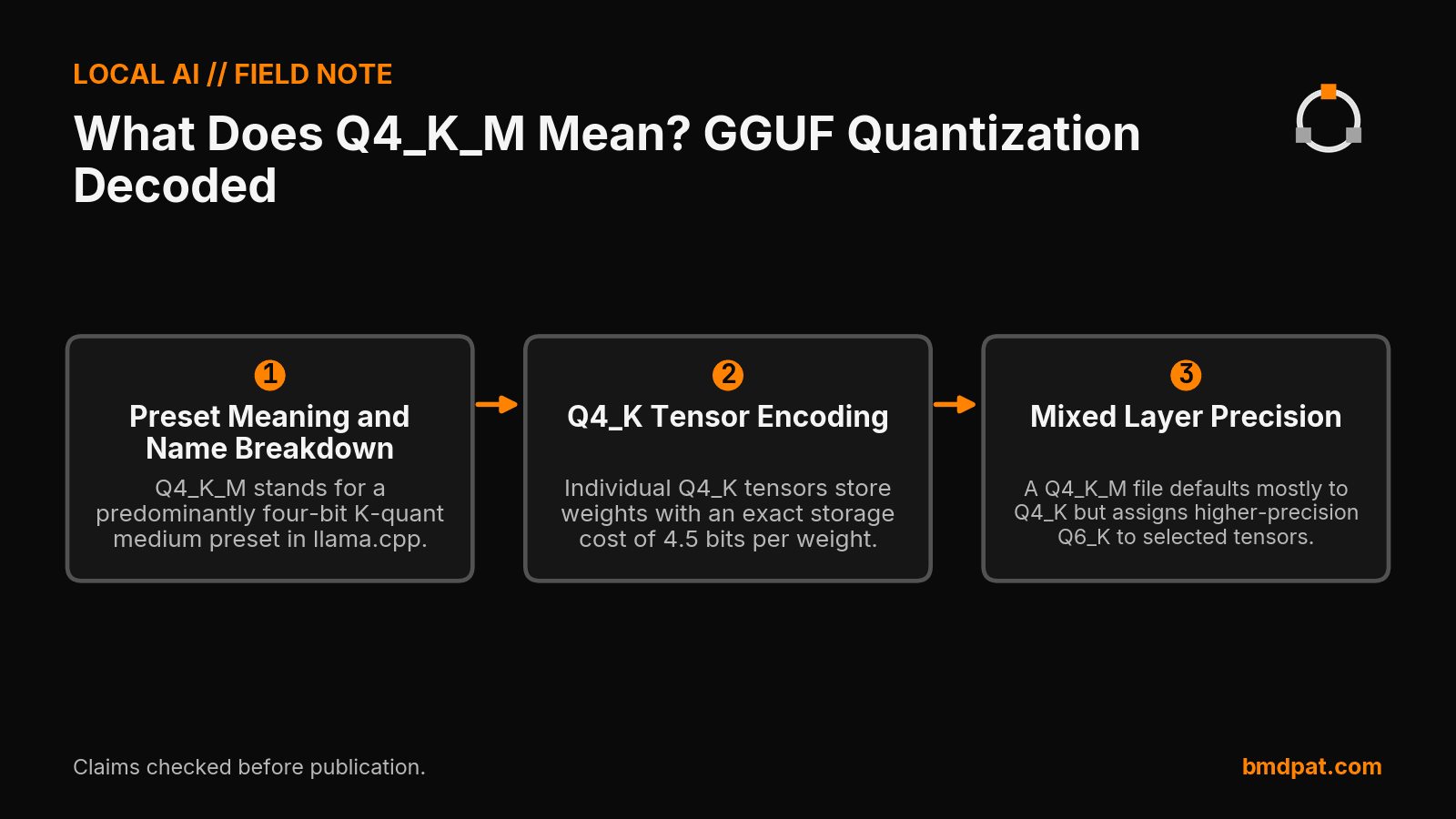
The Q4_K_M label stands for a 4-bit K-quant medium preset in llama.cpp. The Q stands for quantization, 4 marks the base bit width, K designates the K-quant block format, and M identifies the Medium preset variation rather than Small or Large.
In the llama.cpp source code, the identifier LLAMA_FTYPE_MOSTLY_Q4_K_M maps directly to Q4_K - Medium. Similarly, LLAMA_FTYPE_MOSTLY_Q4_K_S maps to Q4_K - Small.
The name describes a file-level preset rather than a uniform tensor type. A Q4_K_M file defaults to Q4_K for most layers, but it assigns higher-precision Q6_K encodings to selected attention-value and feed-forward-down tensors. Architecture branches, tensor shapes, and optional quantization flags modify this mix. The filename signals the intended balance, but inspecting the underlying file tells the real story.
How does Q4_K tensor encoding work?
A Q4_K tensor stores weights in groups of 8 blocks, with each block containing 32 weights. Scales and minima are stored using 6-bit values, resulting in an exact storage cost of 4.5 bits per weight for that specific tensor format.
As documented in the Hugging Face GGUF specification, the 4.5 bits-per-weight figure applies strictly to individual Q4_K tensors. It is not the total average bits-per-weight for the entire Q4_K_M file. Because a Q4_K_M file incorporates higher-precision Q6_K tensors on sensitive weights, the blended storage footprint across the whole model will be slightly higher than 4.5 bits per weight.
GGUF containers bundle both tensor data and metadata. The Hugging Face viewer exposes individual tensor names, shapes, and precisions directly in your browser. You can inspect any uploaded GGUF model there to see the exact layer-by-layer precision distribution instead of guessing from the filename.
How do presets compare across builds?
Different quantization presets produce different tensor layouts depending on model architecture, build options, and quantization flags. The original pull request description from 2023 described Q4_K_M simply as Q6_K for half the attention-value and feed-forward-down tensors, but modern implementations handle architecture differences dynamically.
The quantizer documentation in the llama.cpp repository provides this standard command for generating a Q4_K_M file from a 16-bit source:
./build/bin/llama-quantize gemma-4-E2B-it-bf16.gguf gemma-4-E2B-it-Q4_K_M.gguf Q4_K_M
You can alter how this preset behaves by passing flags:
| Flag or Option | Operational Effect on Quantization |
|---|---|
Q4_K_M | Default preset assigning Q4_K mostly, plus Q6_K on select attention-v and ffn-down tensors |
Q4_K_S | Small preset targeting lower total file size by using Q4_K on different tensor selections |
--pure | Disables the mixed K-quant strategy and forces uniform quantization |
--tensor-type | Overrides specific tensor types manually |
--imatrix | Applies an importance matrix from calibration data to select tensor precisions |
Because tools like --imatrix and --tensor-type modify internal assignments, two GGUF files that both carry Q4_K_M in their filenames can have slightly different tensor distributions and quality profiles.
When should you run Q4_K_M over other formats?
Choose Q4_K_M when you need a balance between memory footprint and output quality, and when your available VRAM cannot accommodate Q5_K_M or Q8_0. If a smaller Q4_K_S file fits your task requirements, run the smaller file instead.
On an RTX 5090 using Ollama server 0.31.2, a dated single-request test recorded on 2026-09-21 in Reports/5090/quant-ladder-27b.md measured Qwen3.8-27B Q4_K_M running at 62.1 tokens per second for codegen at a context length of 4096. That observation reflects one specific hardware environment and prompt, not an absolute guarantee for all workloads.
To understand how to distribute these layers between your host RAM and GPU memory, consult our llama.cpp n-gpu-layers guide. Before downloading large checkpoints, check your exact memory budget with our VRAM calculator. For broader deployment trade-offs across consumer cards, read our overview on local LLM inference on consumer GPUs and our GGUF quantization comparison guide.
What should you do with this?
- Inspect the GGUF file metadata using a tool like the Hugging Face viewer to verify the actual mixture of Q4_K and Q6_K tensors.
- Calculate your total context length and layer allocation against your physical VRAM to confirm the model fits completely onto your card.
- Test your specific generation task against both Q4_K_S and Q4_K_M to measure whether the larger medium preset delivers noticeable quality improvements on your queries.
Accompanying prompt
What the prompt does: Inspects model requirements, tensor presets, and VRAM budgets to select the appropriate GGUF quantization level.
Copy/paste this prompt:
Copy-ready prompt
Paste the exact block into your coding agent.
No article chrome, no footnotes, no formatting drift.
This prompt and every other one we publish live in the free prompt library.
Copy the block above.
Weekly measured local runs: https://bmdpat.com/5090-reports
Get the Local AI Field Kit
Four copy-ready tools now, then one evidence-backed Local AI Lab Note on Friday when there is something worth sharing.
Try the free agent run check firstGet the requested artifact now, then at most one evidence-backed Local AI Lab Note on Friday when there is something worth sharing. One-click unsubscribe. No sponsored placements. Privacy.
Written by
Patrick Hughes
I build BMD and publish measured AI runs, failure reports, and reusable checks. Nashville, Tennessee.
More writing
- 5 min
Q6_K vs Q8_0: Which GGUF Preset Fits Your Setup?
Compare Q6_K and Q8_0 presets for llama.cpp. See real VRAM allocation, file sizes, and test steps to decide which GGUF quantization fits your card.
- 5 min
llama-server ngl: How to Set and Verify GPU Offload
Learn how to set -ngl in llama-server, verify GPU layer offload in startup logs, avoid silent CPU fallback, and check device readiness.
- 5 min
What Does ngl 99 Mean in llama.cpp?
In llama.cpp, ngl 99 sets a numeric cap of 99 layers in GPU memory rather than 99 percent VRAM. Here is how layer offloading works and what to run.
- 5 min
q4km vs q4ks: which 4-bit file fits?
q4km is Q4_K_M and q4ks is Q4_K_S. For Llama 3.1 8B, the quantize README lists 4.36 GiB for Q4_K_S and 4.58 GiB for Q4_K_M.
- 5 min
KV Cache Q4 vs Q8 in llama.cpp Explained
Compare q4_0 and q8_0 KV cache options in llama.cpp server. Learn the exact CLI flags, allowed types, defaults, and how to verify output quality.